
SiteMap
Links
|
|
|
|
Miscellaneous
SiteMap Links |
Music Screen Savers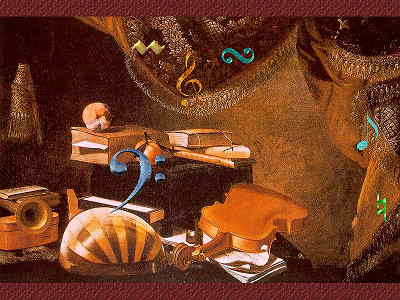
I have created some music-related screen savers, using a screen saver creator program from Axialis . These are freeware, and I hope you enjoy them. Download and Installation InstructionsEach screen saver is compressed and is downloadable as a self-extracting executable. To install and use one, do the following:
Uninstall InstructionsYou can remove a screen saver from your system by deleting its file(s) from the C:\Windows directory (assuming you took the default installation directory). Find the directory using Windows Explorer, find the files (one or sometimes two) for the screen saver, and simply delete them. I have listed the files that are installed for each screen saver in the section describing each one. If you have Explorer set to "Hide MS-DOS file extensions for file types that registered," you will not see the ".scr" or ".apj" extensions that I describe; you will just see the plain filename. You can turn these extension displays on (always recommended) in Explorer by using Menu->View->Options, pick the View Tab, and uncheck the box that says "Hide MS-DOS ... registered."NotesMost screen savers play a built-in midi piece (you can mute it with the Settings button in the Screen Saver dialog). How well a particular piece sounds can depend on the type of sound card you have.Since my site is devoted to trills, I feel I should mention that the trills in these midi pieces are less than ideal. It is very difficult to obtain a convincing trill using notation software. I toyed with the idea of just using simple appoggiaturas in place of trills (since a trill is just a fancy appoggiatura), but decided that the trills I could build were somewhat better. I've found many baroque midi files on the Internet that play cadences as written (i.e. no ornamentation), which I think is pretty awful, and much worse than at least employing a simple approggiatura. If anyone has any thoughts on this matter, or anything else related to these screen savers, I'd like to hear from them (rhureau@earthlink.net). Screen Saver - Vivaldi 1This screen saver (shown at the top of this page) plays the Largo movement from Vivaldi's Concerto in F for Recorder, Oboe, Bassoon, Violin and b.c. One somewhat odd thing about this particular movement is that there is no continuo part, even though the other 2 movements of the piece have one. The background picture is by Baschenis, which I got from Carol Gerten's excellent art site. I made all the floating music symbols myself. Some collide and it can get pretty frantic!Installs file: vivaldi1.scr Click here to download Vivaldi 1 (530K). Screen Saver - Trill/Turn 1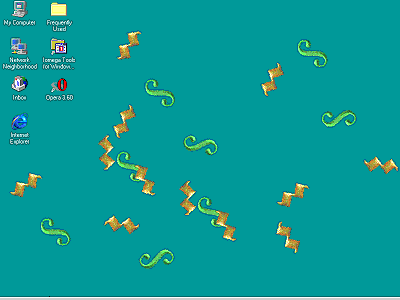 This screen saver has no music. It appears as a bunch of trill and turn symbols that chase each other around your desktop. Installs files: trturn1.scr and trturn1.apj Click here to download Trill/Turn 1 (347K). Screen Saver - Vivaldi 2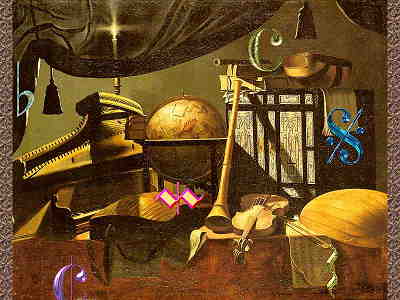 This screen saver plays the Allegro non molto movement from Vivaldi's Concerto in F for Recorder, Strings, and b.c, rescored by me for 2 recorders and b.c. The piece is interesting because of the way Vivaldi has the continuo keep dropping out and reappearing, simulating a larger concerto for solo instruments and full orchestra. Plus, it is very pretty.
The background picture is by the studio of Baschenis, which I got from Carol Gerten's art site.
Click here to download Vivaldi 2 (556K). Screen Saver - Recorder "Screen" 1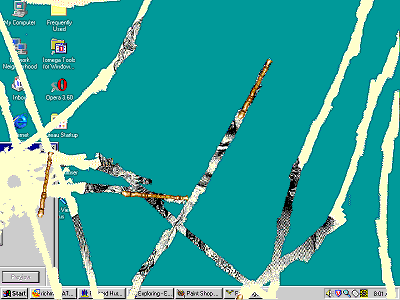 This screen saver has no music. It shows several animated recorders that burrow around on your screen, removing the desktop and uncovering a picture of Handel. This is admittedly kind of bizarre. Installs files: recscrn1.scr and recscrn1.apj Click here to download Recorder Screen 1 (541K). Screen Saver - Telemann 1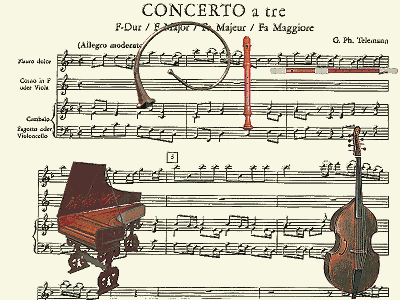 This screen saver plays the Allegro Moderato from Telemann's Concerto for Recorder, Horn, and b.c. The screen shows the score in the background, and the instruments that are playing in the foreground. There is also a flute that tries to get into the picture, but is always knocked out when it collides with the recorder. This is my wishful-thinking rewrite of history, where the recorder drives the flute into obscurity ;-). Installs file: teleman1.scr Click here to download Telemann 1 (427K). |